Getting started
IUIC University is the online university of Israel United in Christ. This guide covers the basics everyone needs: creating an account, signing in, and finding courses.
The home page
The home page shows the ten departments, the core courses every student should start with, and the learning paths for each stage of life.
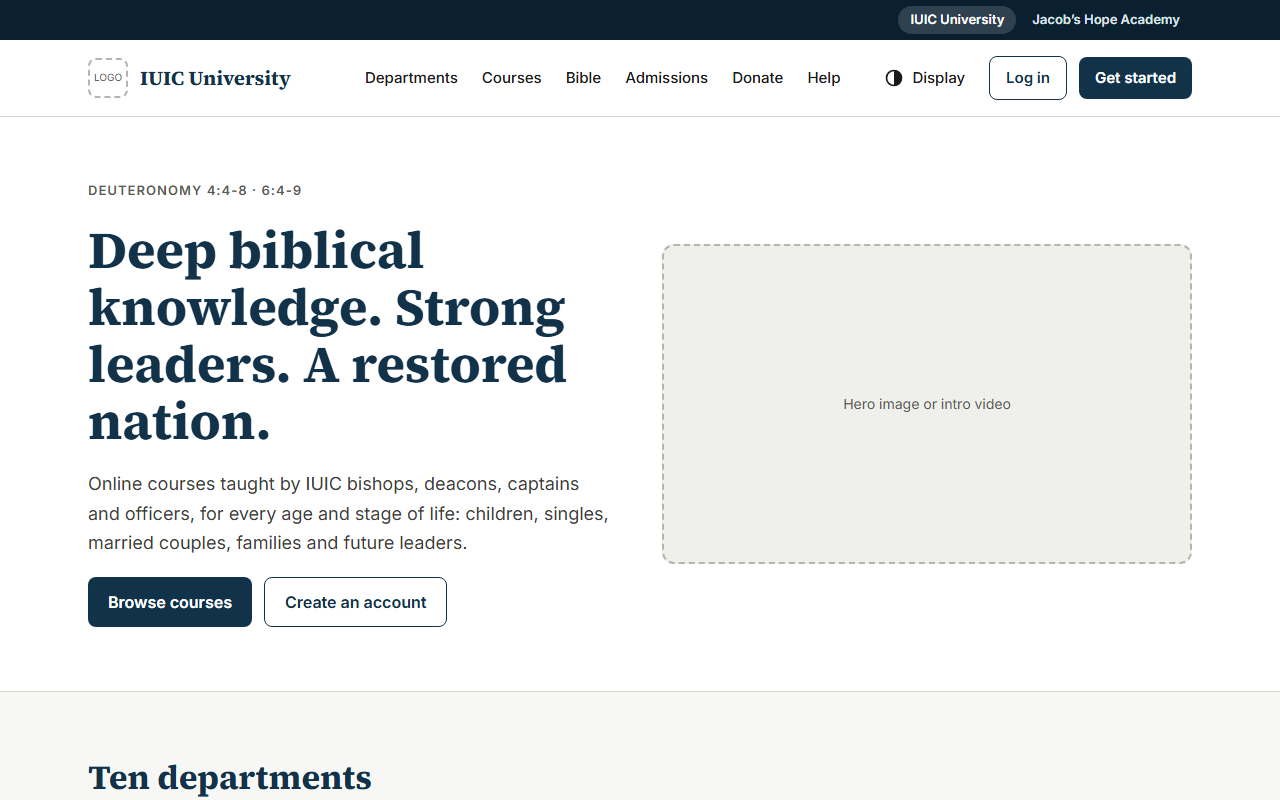
- Departments, Courses, Admissions, Donate and Help are in the menu at the top. Help opens these guides.
- Log in and Get started are at the top right. Once you're signed in, this changes to My dashboard.
Two schools: IUIC University and Jacob's Hope Academy
IUIC University has two schools, each with its own pages, look and dashboards:
- IUIC University, for adults, in navy.
- Jacob's Hope Academy, the school for children from Pre-K to Grade 12, in warm cream and gold (light or dark). Its address is /academy.
The school switch at the very top of every page (IUIC University | Jacob's Hope Academy) moves between them. One account and one sign-in work in both. The Bible, Help and your notifications are shared.

Create an account
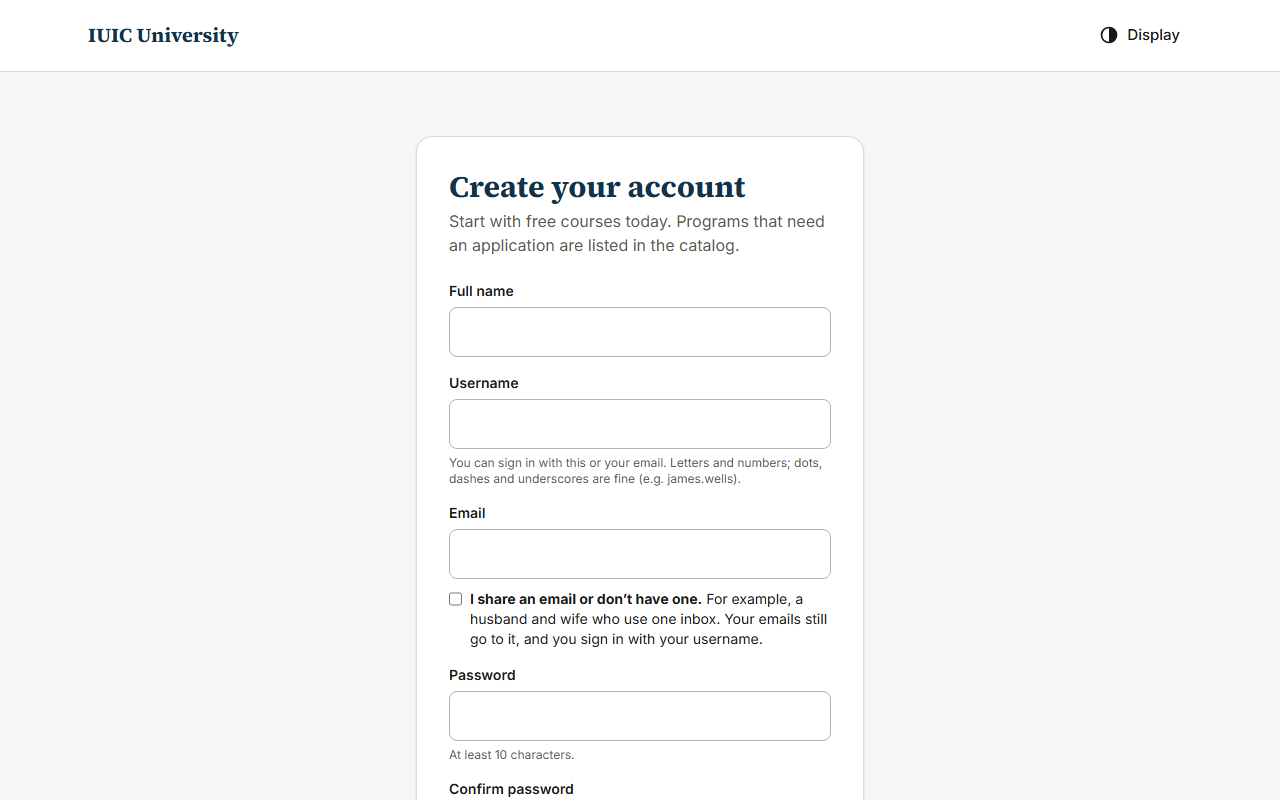
- Click Get started (top right) or Create an account on the home page.
- Enter your full name.
- Choose a username, for example james.wells. You can sign in with it or with your email.
- Enter your email address.
- Share an inbox with your family, or have no email? Tick I share an email or don't have one. For example, a husband and wife who use one inbox can each have their own account. Emails for both of you go to the shared inbox, and each of you signs in with your own username.
- Choose a password of at least 10 characters, and type it again to confirm.
- Click Create account. You go straight to your dashboard.
Every new account starts as a student account. If you are an instructor or staff member, an administrator, bishop, deacon or captain adds your role, or sends you an invitation (see below).
Signing up a child? Create your own account first, then add your child under My family (see the Student guide). Children don't need an email address.
Sign in and sign out
- Click Log in at the top right of any page.
- Enter your email or username and your password, then click Sign in.
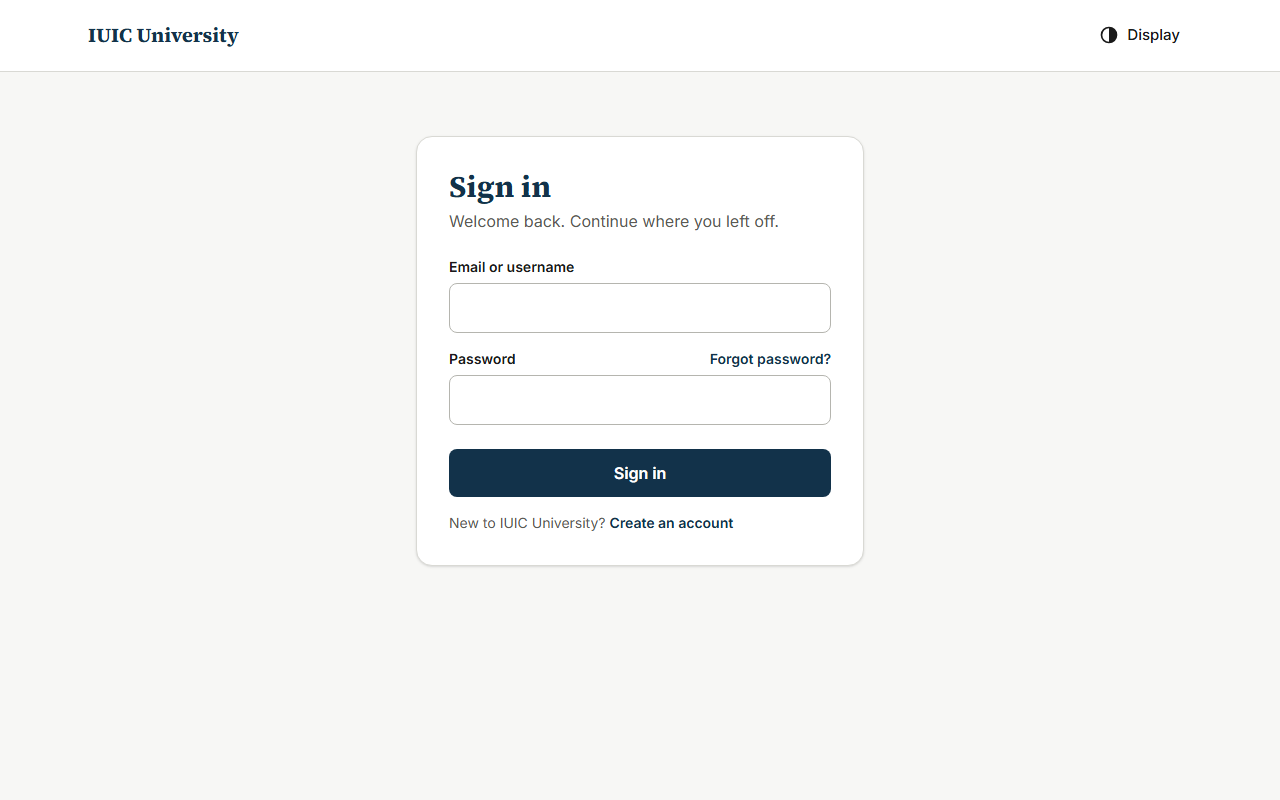
If you share an email with someone else, sign in with your username. Children can sign in only after their parent turns sign-in on.
You land where you belong:
| Who you are | Where you land |
|---|---|
| Student | My dashboard |
| Parent whose children are at Jacob's Hope Academy | Jacob's Hope Academy: Home |
| Instructor, department head, teaching assistant | Faculty: My courses |
| Homeroom teacher who teaches only at the academy | Academy office: My homerooms |
| Principal | Academy office: Overview |
| Administrator, Advisory Board, admissions, finance, support | Administration: Overview |
| Bishop, deacon, captain | Course approvals |
If you belong to both schools (for example a parent who also takes university courses, or a teacher who teaches in both), you land in the school you used last. The first time, parents of academy children start in the academy. Switching schools with the switch at the top, or opening a school's dashboard, changes where you land next time.
Signing in on the academy's own sign-in page (Log in on any academy page) always takes people who belong to both schools to the academy.
To sign out, use the Sign out link at the bottom of the menu on the left of your dashboard.
Forgot your password?
- On the sign-in page, click Forgot password? (next to the Password label).
- Enter your email or username and click Email me a reset link. If several accounts share your email (a family), the email lists each account with its own button.
- Open the email Reset your IUIC University password and click Choose a new password.
- Type your new password twice (at least 10 characters) and click Save password and sign in.
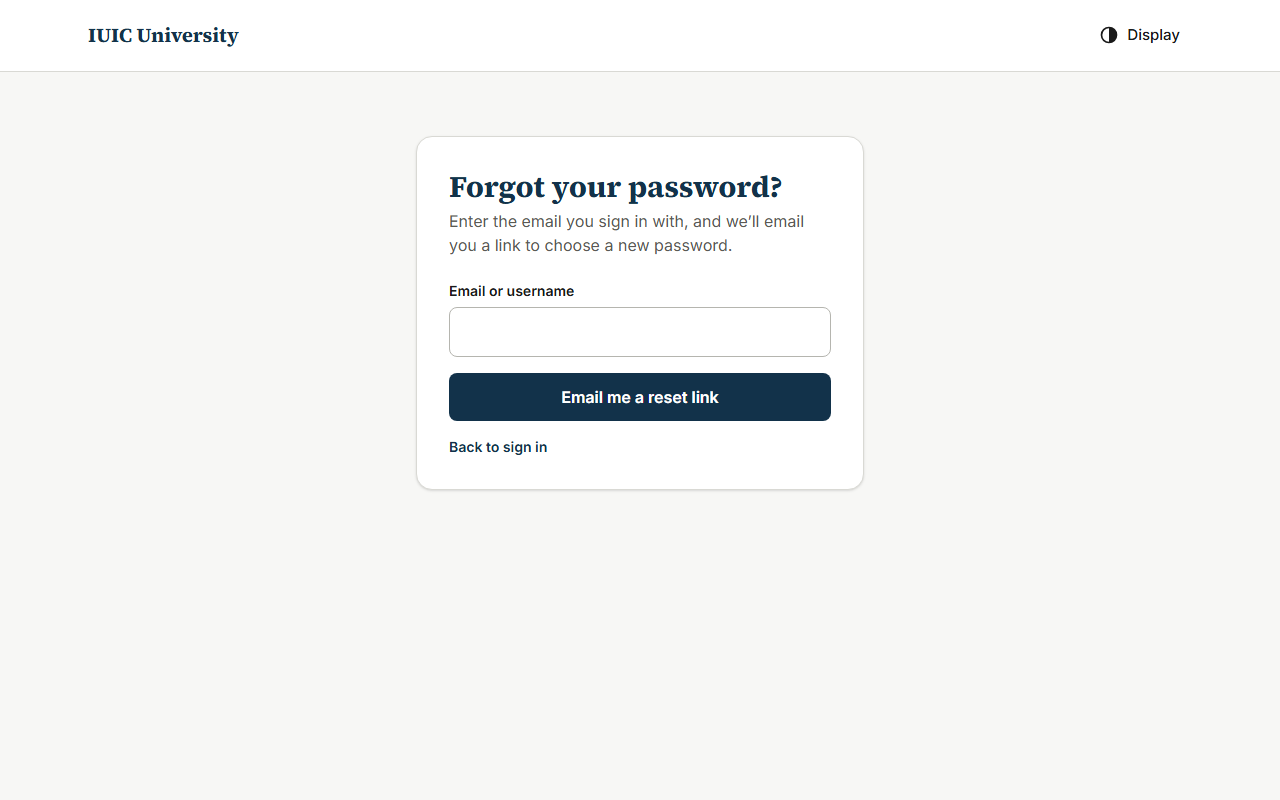
The link works once, for one hour. Choosing a new password signs you out everywhere else.
No email? Check your spam folder. Still nothing after a few minutes? Ask an administrator, bishop, deacon, captain or your department head to make you a reset link. They can send it to you by text or WhatsApp.
Accepting an invitation
If someone at the university added you, you'll get an email You're invited to IUIC University (or a link sent by text or WhatsApp).
- Click Accept the invitation (or open the link).
- Check your name, choose a username and a password (at least 10 characters), and type the password again.
- Click Save password and sign in. You're signed in with the role you were given. If a teacher invited you to a course, you're already enrolled in it.
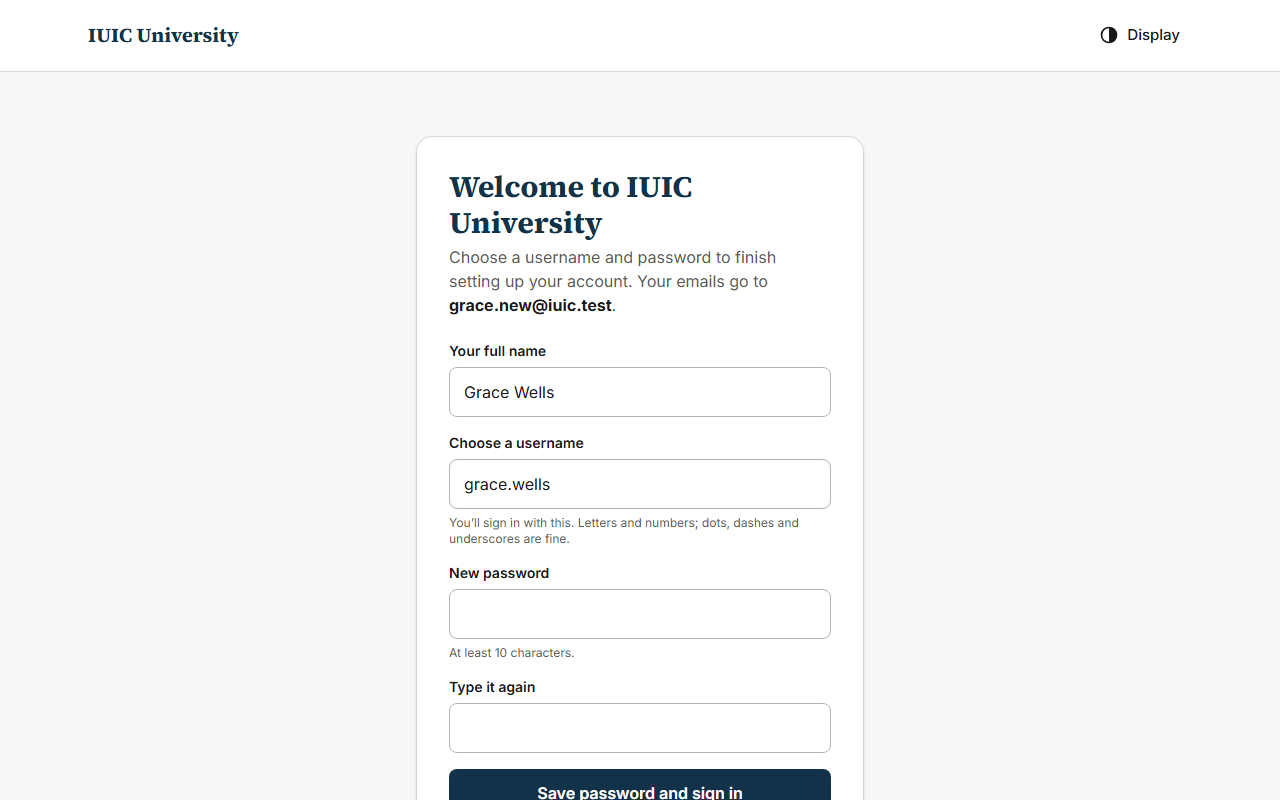
The invitation works once, for 7 days. If it has expired, ask the person who invited you for a new one.
An invitation always makes a new account, even if someone in your family already uses that email. Their account isn't changed.
Joining with a code
Your teacher or facilitator may give you a join code, for example BIB101-7KQ4, or a link to one.
- Go to Join with a code in your dashboard menu (or open the link, or go to /join).
- Type the code and click Continue.
- Not signed in yet? Click Sign in or Create an account. You come straight back to the code afterwards.
- Tick who is joining: you, and any of your children.
- Click Join.
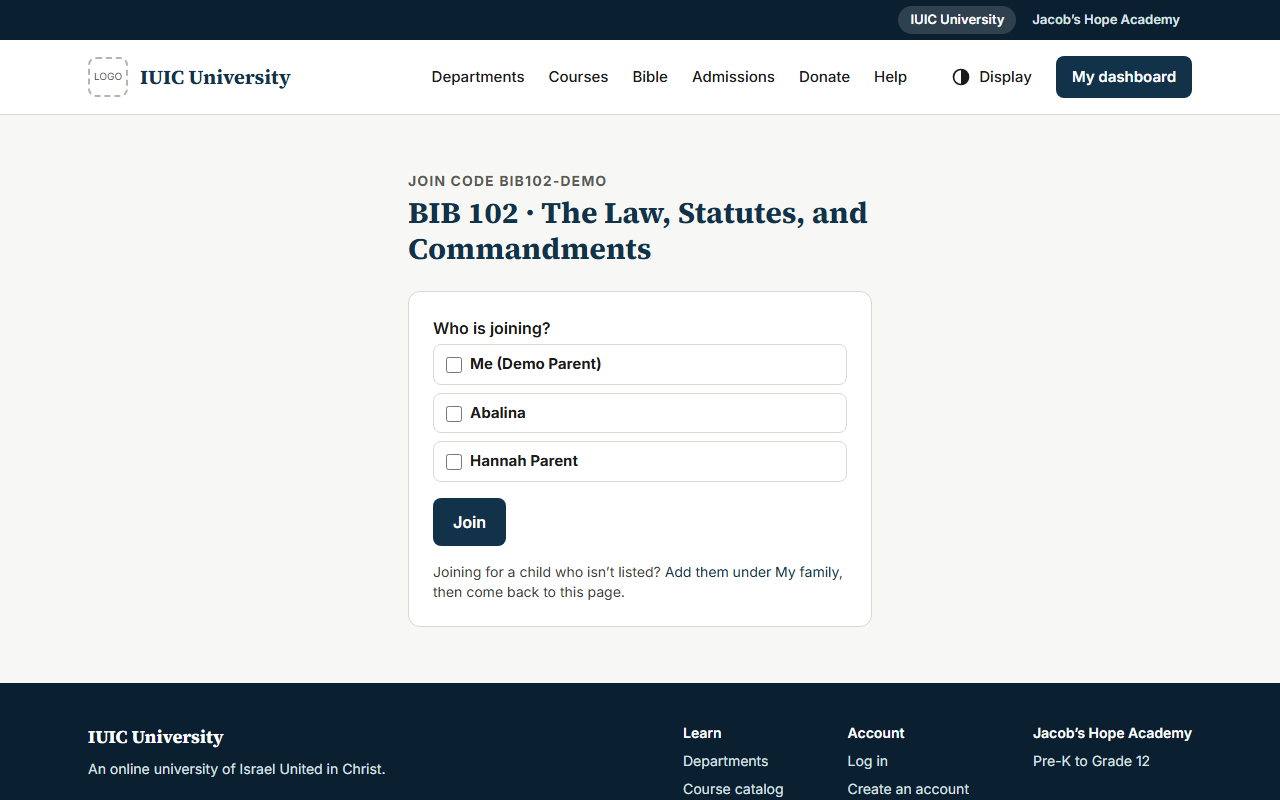
You're enrolled straight away. If the teacher approves each person, you'll see asked to join, and you're enrolled once they approve. Codes can stop working after a date or a number of uses; if yours doesn't work, ask for a new one.
Browse the course catalog
Click Courses in the top menu to see every published course, grouped by department. Use the department buttons at the top of the page to jump to a department.
Every course has a course code, such as BIB 101. The letters are the department, for example BIB for Biblical Studies. The number shows the level:
- 100s: introductory
- 200s: intermediate
- 300s: advanced
To find a course, type its code (with or without the space) or a word from its title or topic in Search at the top of the catalog.
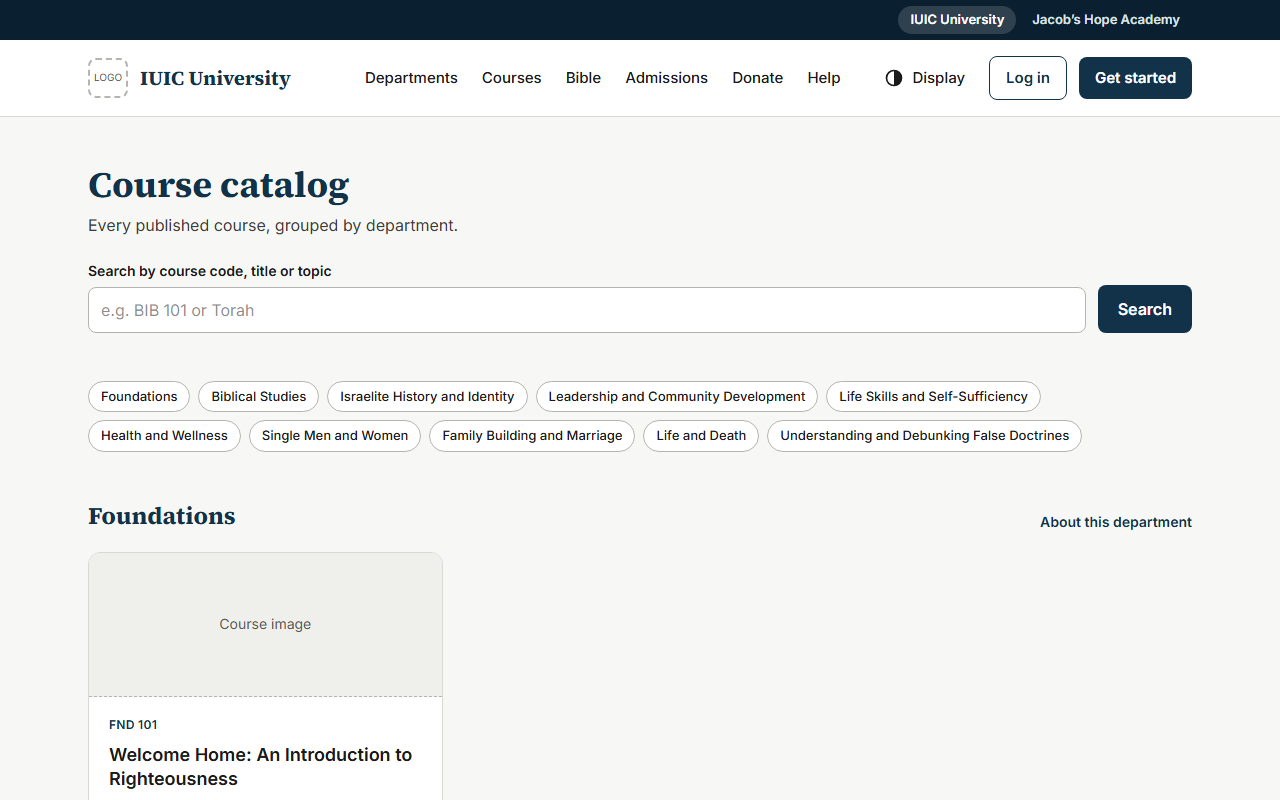
Click any course title to open its page, with the full syllabus and the Enroll button. See the Student guide for enrolling and taking courses.
Display settings: light, dark, contrast and text size
Every page has a Display button: at the top of the page, or at the bottom of the menu in your dashboard. It changes how the site looks, to make it easier on your eyes.
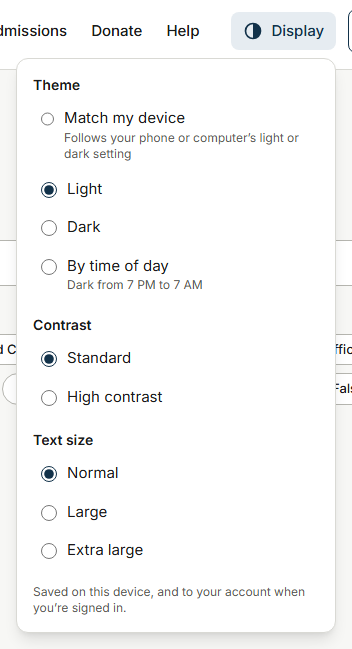
- Theme:
- Match my device follows the light or dark setting on your phone or computer, and changes when it does. This is the default.
- Light and Dark stay as they are.
- By time of day is dark from 7 PM to 7 AM and light during the day, by your device's clock.
- Contrast: High contrast makes text black on white (or white on black, in the dark theme) and makes borders and outlines stronger.
- Text size: Large or Extra large enlarges all the text on the site.
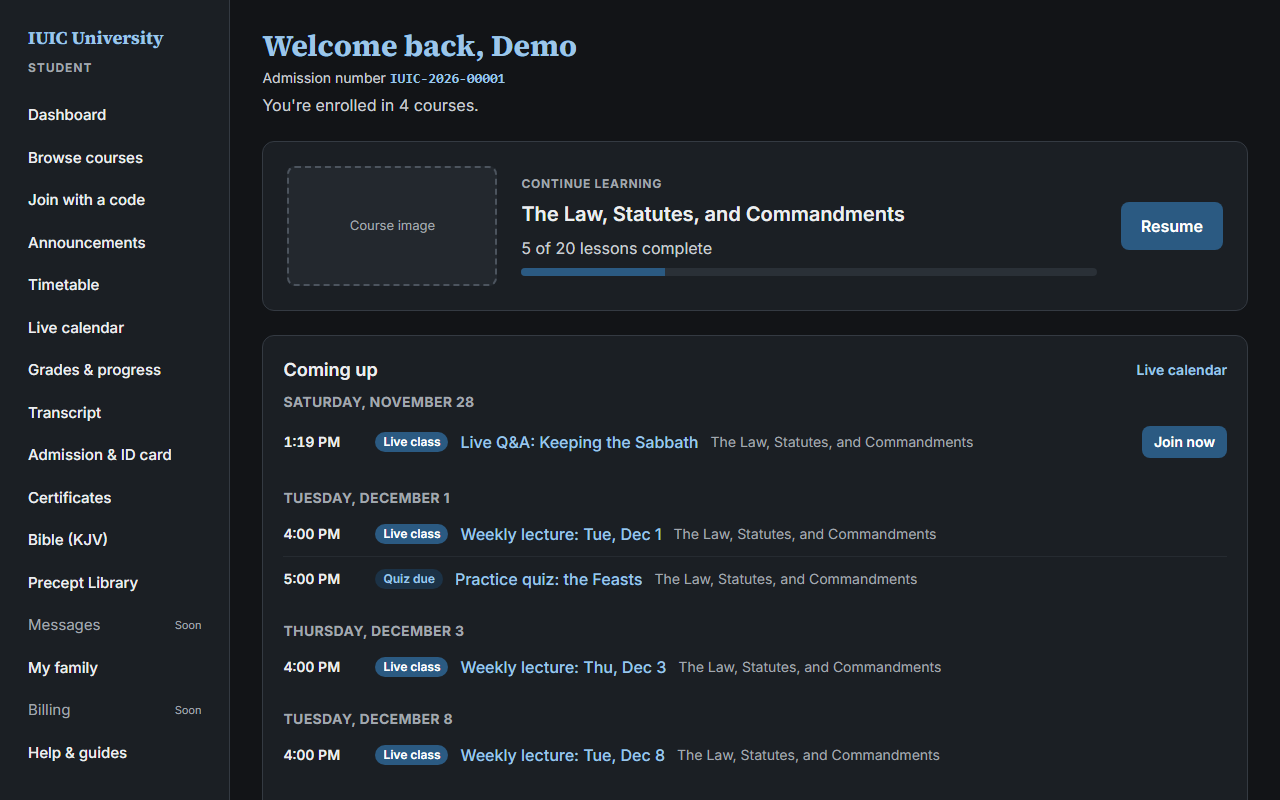
Your choice is saved on the device you're using. When you're signed in, it's also saved to your account, so it follows you to your phone, tablet or another computer. Printed pages, certificates and transcripts always print in the light theme at the normal size.
Finding help
Click Help at the top of any page (or Help & guides in your dashboard menu). You see the guides for your office and the ones below it:
| You are | Your guides |
|---|---|
| A student or parent (or not signed in) | Getting started, Student |
| An instructor or teaching assistant | plus Instructor and Jacob's Hope Academy |
| A department head or Advisory Board member | plus Course reviewer |
| An administrator, principal, admissions or support staff, bishop, deacon or captain | every guide |
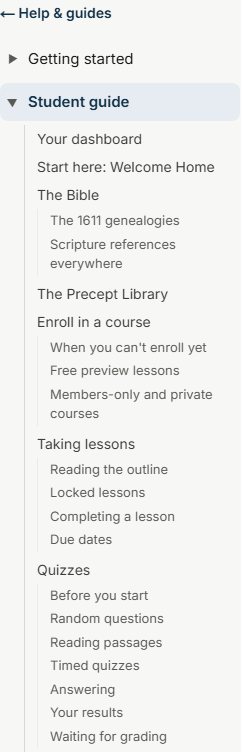
The menu on the left lists your guides. Under the guide you're reading you'll see its topics, with subtopics underneath: click one to jump straight to it. Click the ▶ arrow beside another guide to see its topics without leaving the page.